THE LET’S DATE GUIDE
How to Ask Someone Out with a Personal Invitation Link
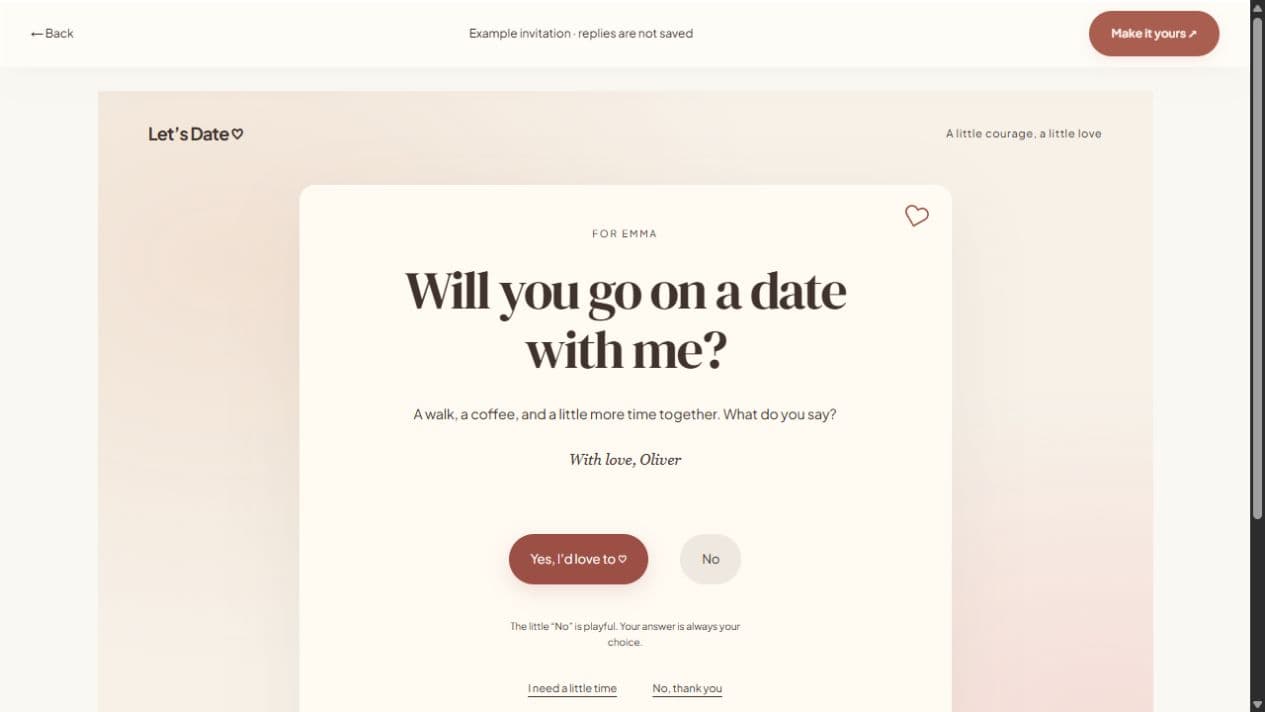
To ask someone out with a link, make a short invitation page, write a clear question, preview it, and send it directly with a personal message. The page can make the moment thoughtful; it should also make saying no or asking for time comfortable.
1. Start with the relationship, not the animation
Think about what the other person already knows about your feelings. If you have only spoken a few times, a short coffee invitation is easier to understand than a long declaration. If you are already dating, a shared memory can introduce a plan for time together.
A website is one way to deliver the question. It does not make someone more likely to want a date, and it is not a way to get around a request for no contact. Use a channel you already communicate through and keep the invitation proportionate to the relationship.
2. Write one clear question and one useful detail
Open the quick invitation studio and edit the question. Give them enough context to know what you are suggesting, without inventing confirmed plans. An optional photo can add warmth, but only use a picture you have permission to share.
For example: “Would you like to get coffee with me this weekend? I enjoyed our conversation about old films and would love to continue it.” That is a specific invitation, not a commitment on their behalf. If the day is flexible, say so.
- Put the question in the headline.
- Keep the note short enough to read comfortably on a phone.
- Use availability suggestions if you are still choosing a day and place.
- Leave the date and venue unconfirmed until you have agreed them together.
3. Preview, publish, and check the actual link
Choose a style and preview the recipient view. Check the question, names, photo crop, and reply choices. The recipient can answer yes, no, or maybe. A playful No animation has a clear decline alternative; it never changes rejection into acceptance.
Sign in and verify your email to publish. A draft saved in your browser is not yet a shared page. After publication succeeds, copy the provided short link and open it in another browser or on another phone. If you added a password, check the locked view and send the password separately.
4. Send a message around the link
A little context makes a link less confusing. Try: “I made you a small invitation. No pressure—open it whenever you have a moment.” Send it directly rather than asking them to answer in a group chat. WhatsApp sharing and email sharing open your own apps; the website does not send a campaign for you.
Read the reply for what it says. A maybe means they need time or more information. A no is a no. If they say yes and suggest dates, agree the plan in conversation. The invitation page does not book a restaurant or confirm transport.
5. Keep the shared version intentional
After sharing, edit your draft if you need to correct something and publish again to update the same link. Autosave does not change the live invitation. For a changed plan, send a separate message so they know to reopen it.
You can unpublish the page when the moment has passed. An unprotected link can be forwarded, and a password does not prevent screenshots or downloaded pictures. Keep sensitive contact and location details out of the invitation.